Pull invoices and orders together
“Review the invoices and recent orders in my open vendor accounts. Make a cited table with vendor, date, amount, and status; flag anything missing.”
Download the latest manual release below, then connect an agent in a few minutes.
Download the Chrome extensionManual install · version 0.2.3 · ZIP archiveChrome 125 or later. You’ll extract the ZIP and load its folder in Chrome.
GET THE EXTENSION
Save the ZIP file, then extract it to a folder you can keep, such as Downloads/Browser f6n. Chrome loads the extension from this folder, so leave it in place.
On Windows, choose Extract All. On macOS, double-click the ZIP to expand it.
Select the extracted folder in Chrome, not the ZIP archive.
LOAD IT INTO CHROME
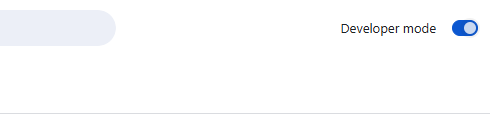
In Chrome, type chrome://extensions in the address bar and press Enter. Switch on Developer modeat the top-right of the page.
CHOOSE THE EXTRACTED FOLDER
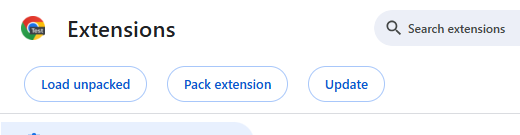
Click Load unpacked, then choose the extracted Browser f6n folder from step 1. Select the folder that contains the extension files.
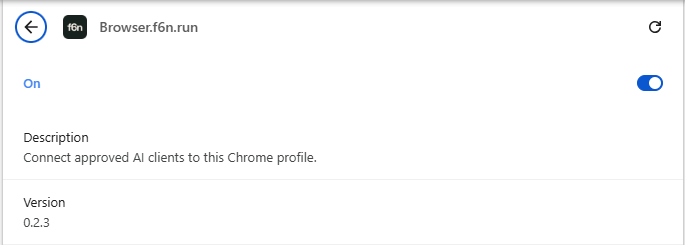
Chrome adds Browser f6n to your extensions. Keep the folder where it is so Chrome can continue loading it.
OPEN AND SIGN IN
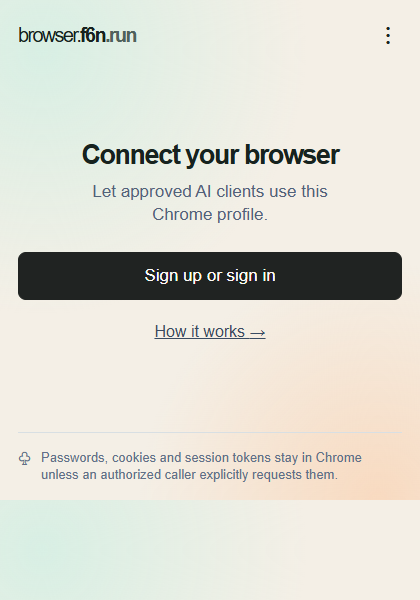
Click Chrome’s puzzle-piece button, pin Browser f6n to the toolbar, and open it. Choose Sign up or sign inand finish the hosted sign-in in the Chrome profile you want to connect.
Return to the popup and wait for Connected. Keep this Chrome profile open and your computer online while you use the agent.

GIVE YOUR AGENT THE SETUP GUIDE
Once the extension says Connected, copy the exact directions shown in its popup and paste them into the agent you want to use. This message points the agent to the current setup guide.
Read https://browser.f6n.run/connect.md and help me connect to my local browser.Pasting starts setup; your agent will guide authorization and a browser check next. Read the full guide
YOUR FIRST BROWSER TASK
You’re all set once your agent finishes authorization with the same Browser f6n account and confirms it can see your open tabs.
Then ask it to work with pages already open in your signed-in Chrome profile. Begin with a summary or comparison you can check against the source.
Review what browser access allowsEXAMPLES TO TRY
These are example prompts for pages open in your Chrome profile, not built-in integrations with the services named.
“Review the invoices and recent orders in my open vendor accounts. Make a cited table with vendor, date, amount, and status; flag anything missing.”
“Brief me for my 2 pm customer meeting using the CRM record, project updates, and latest email thread. Cite sources and list open decisions.”
“Compare this monitor across my open store accounts: current price, stock, and delivery estimate. Link sources and don’t place an order.”
“Group urgent support tickets by customer impact, check the related account pages, and draft suggested replies for my review. Don’t send or update anything.”
An authorized agent can inspect and operate your connected Chrome profile. Browser tools can expose page content and sensitive cookies, storage, and other session data, and can perform consequential actions. Browser f6n does not ask for confirmation before every action.
Choose an agent you trust, review its approval request, and follow its actions. To stop the browser connection, disable or remove the extension from chrome://extensions. Requested page data passes through the relay to your agent. The relay does not persist page contents, screenshots, or browser-tool results beyond the bounded command lifecycle. Your agent provider’s handling is separate.